READY TO GROW YOUR LANDSCAPING BUSINESS?

Merging Duplicate GBP Listings

Making Changes To Established Listings

Merge/remove duplicate accounts

This is only necessary if you have reviews on two GBP listings. In this case you are asking Google to ‘merge’ the reviews from one listing to the other.

If only one account has reviews, simply remove the redundant listing from your account. See how in Step 2.

Note: Once you remove a listing from your account, the listing will only by unpublished or unverified once Google is satisfied the listing no longer holds value to the public.

An example of this is when a business is permanently closed, it might be best to show the closed business listing to warn customers. Eventually it will be unpublished.

Step 1: Prepare Listing To Be Marked As Duplicate

Make sure the duplicate listing information is consistent with the listing you would like to keep. Service areas, categories, business name etc. This helps Google identify the listings as duplicate and not two separate businesses.

Step 2: Mark Duplicate Listing

You will now need to remove verification from the listing. In this case mark the listing as duplicate.

*Go to Google Maps > search and find the relevant listing*

Click ‘Suggest an edit’
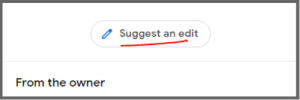
Mark Duplicate Listing 1

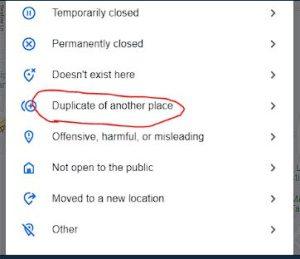
Choose ‘Close or remove’

Mark Duplicate Listing 2

Select ‘Duplicate of another place’

Mark Duplicate Listing 3

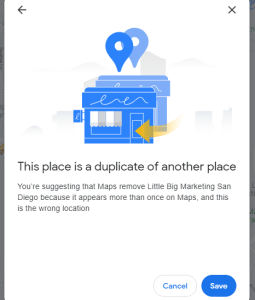
Click ‘Save’

Mark Duplicate Listing 4

Once Google has checked and identified the listing as a duplicate, you will see the duplicate label displayed in the GBP dashboard.

Note: yours will say duplicate not verification required

Mark Duplicate Listing 5

If your listing has reviews you would like to keep, continue to Step 3.

If not, you can now remove the listing from your account.

Go to your GBP Dashboard and select the Info Tab

Select Remove Listing on the on the right hand side of the screen
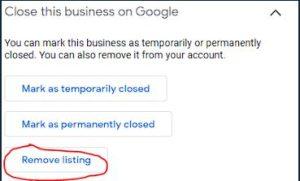
Mark Duplicate Listing 6

Step 3: Contact Google

Once the listing is marked as duplicate you can contact Google inside the GBP dashboard under ‘support’.
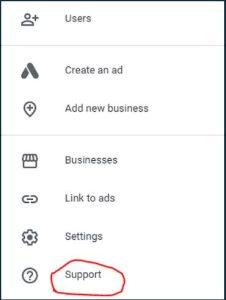
Contact Google 1

Scroll to the bottom and select ‘contact us’
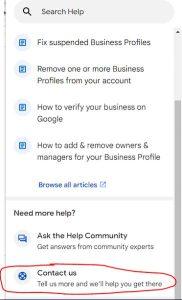
Contact Google 2

Select the relevant business and enter ‘Merge duplicate accounts’

Click next

Contact Google 3

Follow the remaining prompts to submit your request. Watch for an email regarding the status of your request from Google.